Smart Streaming devices
- BiniJohn
- May 12, 2023
- 1 min read
Smart streaming devices are devices that allow you to stream movies, TV shows, and other content directly to your TV. These devices are typically small, plug-and-play devices that connect to your TV via HDMI and connect to the internet via Wi-Fi or Ethernet.
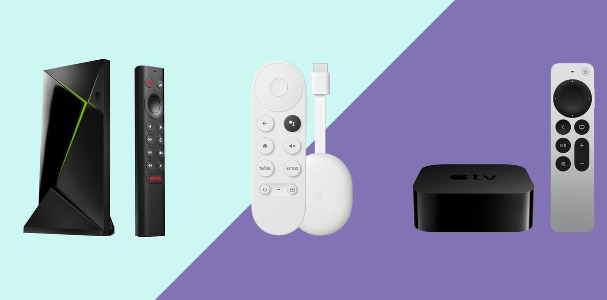
Android or google TV
Smart streaming devices are devices that allow you to stream movies, TV shows, and other content directly to your TV. These devices are typically small, plug-and-play devices that connect to your TV via HDMI and connect to the internet via Wi-Fi or Ethernet.
Turn on Google Play protect
On your Android (10 or lower) TV > Settings Apps Security & restrictions > Turn Verify apps on or off.
On your Android TV (11 or up) > open the Google Play Store app > Menu > Play Protect Settings > Turn Scan apps with Play Protect on or off.
Regular software updates
On Google TV Models - On the remote, press the Quick Settings button → Select the Settings icon → System → About → System software update → Check that the Automatically check for updates setting is set to ON. (To check manually, select System software update with the procedure above, and then select Software update)
On Android TV models: Remote control → Home button → Select Help (Directly press the help button if it is available on the remote) → Status & Diagnostics → System software update → Check if the “Automatically check for update” or “Automatic software download” setting is set to ON.
Reset advertising ID
Home screen → Settings → Device → Preference → About → Legal information → Ads → Rest advertising ID.
Delete advertising ID
Home screen → Settings → Device → Preference → About → To focus on "Delete advertising ID," press the D-Pad twice. Then press Select.
Apple TV
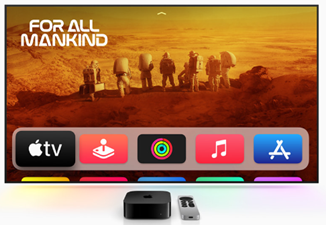
Apple TV provides a range of security and privacy controls to help you protect your personal information and ensure the safety of your device. Here are some key security and privacy controls in Apple TV:
Disable data sharing
Go to General (settings) and then Privacy >Disable the “Send Data to Apple option.”
Adjust location services options
Settings > General > Privacy > Select Location Services > hen turn it on or off, or choose options for Siri and Dictation, Time Zone, HomeKit, or individual apps that use location services.
Allow apps to ask permission to track you
Settings > General > Privacy > Select Tracking > turn Allow Apps to Ask to Track on or off.
Adjust Bluetooth access
Settings > General > Privacy > Bluetooth, then turn apps on or off in the list.
Adjust which third-party apps can access and remember preferences for Apple TV users
Settings > General > Privacy > Apple TV Users > then turn App User Access on or off or select Reset User Access to remove any user-specific preferences from all third-party apps.
Regular Software Updates
Settings > System > Software Updates
Two-factor authentication
Settings > iCloud > Password & Security > Two-Factor Authentication
Amazon Fire TV
Amazon Fire TV provides a range of security and privacy controls that can help protect your personal information and ensure a safer viewing experience. Here are some steps you can take to set up security and privacy controls on your Amazon Fire TV:
Turn off device data usage details
Go to Settings > Preferences > Privacy Settings > Device Usage Data and turn off the toggle switch.
Turn off app usage data
Fire table: Settings > Apps & Games > Collect App Usage Data.
TV’s: Settings > Preferences > then scroll to the “Right to Privacy Settings.” Turn off the setting labeled “Collect App and Over-the-Air Usage Data.” You can also turn off Interest-based ads in this section.
Reset Advertising ID
Go to Settings > Preferences > Privacy Settings > Advertising ID and select "Reset Advertising ID".
Turn off location-based services
Go to Settings > Preferences > Privacy Settings > Location-Based Services and turn off the toggle switch.
Or
Settings → Wireless → Location-Based Services.
Set up a PIN
Settings > Preferences > Parental Controls > Change Prime Video PIN.
Manage Watch History
Settings > Preferences > Privacy Settings > View Watch History.
Disable Personalized Ads
Settings > Preferences > Privacy Settings > Interest-Based Ads and turn off the toggle switch.
Regular Software Update
Settings > My Fire TV > About > Check for Updates.


Comments