Smart TVs
- BiniJohn
- May 4, 2023
- 1 min read
Updated: May 11, 2023
Smart TVs are internet-connected televisions that offer a range of features and capabilities, such as streaming services, apps, and voice controls. These devices can greatly enhance your viewing experience, but it's important to consider privacy and security measures to protect your personal information.

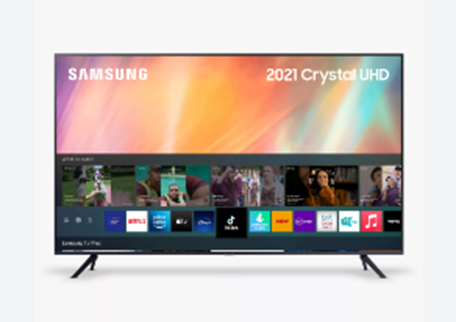
Samsung smart TV
Samsung smart TVs come with various features and settings that can be adjusted to enhance privacy and security. Here are some privacy and security setting setups for Samsung smart TV:
Regular Software Updates
Auto-Update: Go to Settings → Support → Software Update → Auto Update to enable automatic updates.
Manual update: Go to Settings → Support → Software Update → Update Now to check for updates manually.
Disable Activity Tracking / Turn off ACR data collection
Settings → Support → scroll down to Terms & Policies. Here you can turn off Viewing Information Services (Samsung’s ACR technology).
Turn off personalized ad tracking
Settings → Support → scroll down to Terms & Policies → Turn off Internet-based Advertising.
Turn off voice recognition services
Settings → Support → scroll down to Terms & Policies → Voice Recognition Services.
Set PIN code to prevent unauthorised access
Home → Settings → All settings → General & Privacy then System Manager → Change PIN → Enter your current PIN number. The default PIN is "0000" → Enter new PIN.
Reset PIN code
Option 1: With a Samsung Smart Remote or Remote Control
Turn on the TV → then press the Volume button → Press the + button to increase the volume, then press the Return button → Press the – button to decrease the volume, then press the Return button → Press the + button again, then press the Return button, and the PIN should be reset to 0000.
Option 2: With a standard Remote Control
Turn on the TV, then press the Mute button → Press the + button, then press the Return button. → Press the - button, then press the Return button → Press the + button again, then press the Return button, and the PIN should be reset to 0000.
Update Apps on your smart TV
Press the Smart Hub/Home button on your Samsung TV remote → In Menu, select Apps → My Apps → Options → Toggle Auto Update to On.
Delete unused apps
Settings → Support → Device Care → Manage Storage.
On older models, go to Apps → Settings → Downloaded Apps or Apps → My Apps → Options → Delete.
Disable Targeted ads on older TVs.
On older Samsung smart TVs, go to the TV’s Smart Hub menu → Settings → Support → Look for Terms & Policy → then disable SyncPlus and Marketing. You can disable Voice Recognition Services in this section, too.
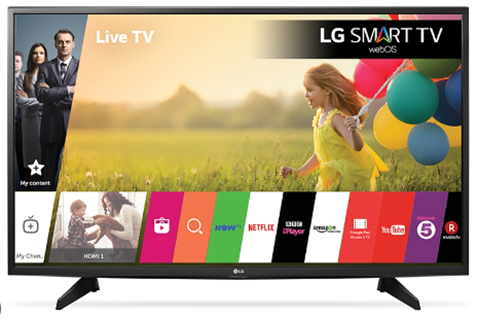
LG Smart TV
LG smart TVs come with various features and settings that can be adjusted to enhance privacy and security. Here are some privacy and security setting setups for LG smart TV:
Disable Activity Tracking (Automatic Content Recognition)
LG’s ACR technology is baked into its newer WebOS-powered smart TVs, known as LivePlus.
To turn this off, go to Settings → All Settings → scroll down to General → scroll down to a setting called LivePlus → toggle it to Off.
Limit Personalized Ads
Settings → All Settings → scroll down to General → About This TV → User Agreements → toggle Personalized Advertising to Off.
Disable Microphone and Camera
To turn off voice recording: Main menu → settings → All Settings → General → Go to User Agreements (on models from before 2015, this is a submenu of About This TV) → Disable the Voice Information setting.
To disable the camera (if your model has one): keep the camera pushed down to prevent it from spying on you. LG also offers external smart TV cameras. If you have one, make sure you don’t leave it plugged in.
Regular Firmware Updates
Settings → All Settings → Support → Software Update → Check for updates → If an update is available “Download and Install” → Once completed, power OFF the TV for 10 seconds and then power ON to install the update.
For models older than WebOS 4.0 → Settings → All Settings → General → About this TV → Check for updates → If an update is available “Download and Install” → Once completed, power OFF the TV for 10 seconds and then power ON to install the update.
Set / Reset PIN code to prevent unauthorized access
Press Home → Settings → Press the 3 dots button → Safety → Reset PIN Code → Set or change the password for the TV ( Default password is set as 0000)
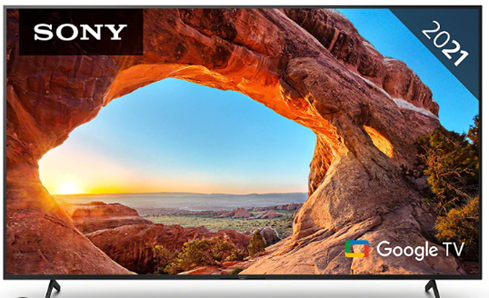
Sony Smart TV
Sony smart TVs also come with various features and settings that can be adjusted to enhance privacy and security. Here are some privacy and security setting setups for Sony smart TV:
Disable Activity Tracking
Home menu → Settings → Initial Setup (if you are asked to change network, click “Don’t change” → Go to the Sony Bravia policy → Click through the next couple of screens and you’ll find the Samba TV policy → click “Disable” — it’s the last option. You’ll be asked to confirm you want to do this → Click “Disable” again to turn off ACR.
Disable all data uploads
Home menu→ Settings → Tv About → Legal Information → View Privacy Policy → Disagree.
If your Sony TV is from 2014 or earlier, you may have to select “Disable Upload Data” rather than disagreeing to the privacy policy.
Turn on regular software updates
1. On Google TV Models - On the remote, press the Quick Settings button → Select the Settings icon → System → About → System software update → Check that the Automatically check for updates setting is set to ON. (To check manually, select System software update with the procedure above, and then select Software update)
2. On Android TV models: Remote control → Home button → Select Help (Directly press the help button if it is available on the remote) → Status & Diagnostics → System software update → Check if the “Automatically check for update” or “Automatic software download” setting is set to ON.
o If this option is set to OFF, select Check for a system software update or Software update to check for an update manually.
3. On other TV models: Help Icon (If not available on the screen, select Settings) → Customer Support, setup, or Product support → Software Update > Network (if Network is not shown, Skip this step) → Select Yes or OK to start installing the update.
To verify if the latest software is installed
From the Settings menu or the Help menu of the TV, check the current software version: On the remote control, press the HOME button, and select Settings or Help → Customer support or Product Support.


Comments